
Use an image or GIF
Use your own pixel art or a favorite GIF. Choose an image in settings or drag a file into the image area.
macOS menu bar app
Keep an image or GIF beside your cursor without blocking clicks. Show or hide it anytime from the menu bar.
Free to use · macOS 26.0 or later
MAKE IT YOURS
Use your own pixel art or a favorite GIF. Choose an image in settings or drag a file into the image area.
Adjust the image’s size, opacity, and position to keep it out of the way while you work.
Show or hide the image from the menu bar. Your normal cursor stays visible, and you can click as usual.
GETTING STARTED
Try one of the images included with the app. To use your own image, open Settings and select Cursor.
How to use your own image or GIFYour settings and images stay on your Mac. We don’t collect app usage data.
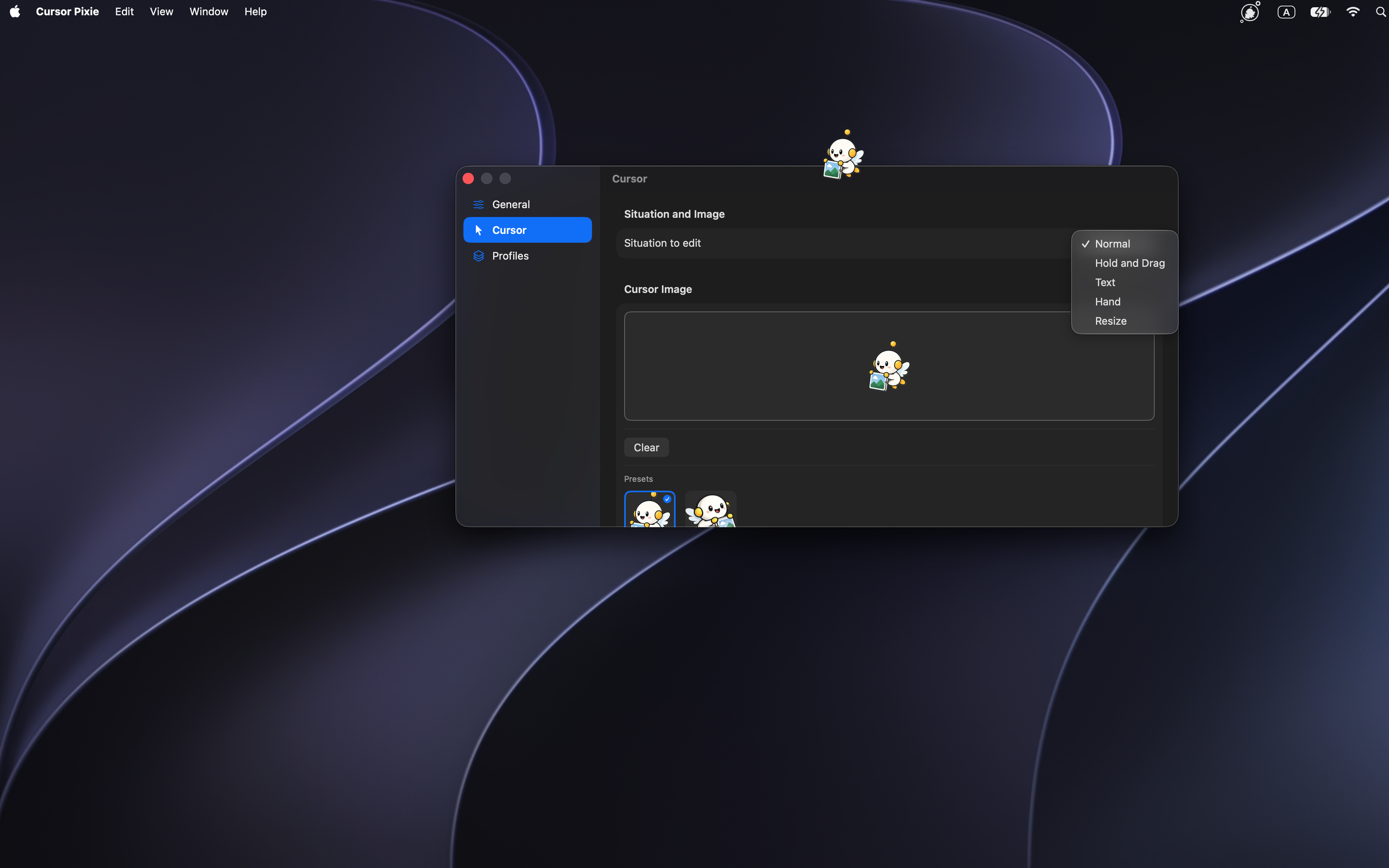

Bring a favorite image into your everyday workspace.
Get it on the Mac App StoreFree to use. If you enjoy it, you can leave an optional tip in the app.
macOS 26.0 or later · English / Japanese